
Payments and fees
An entry fee belongs to a form, not to a tournament. There is no tournament-level fee and no tournament-level price list — you set the amount, the currency and the accepted payment methods when you publish the form. See Registration forms.
Season pathways charge their own entry fees, separately from any form.
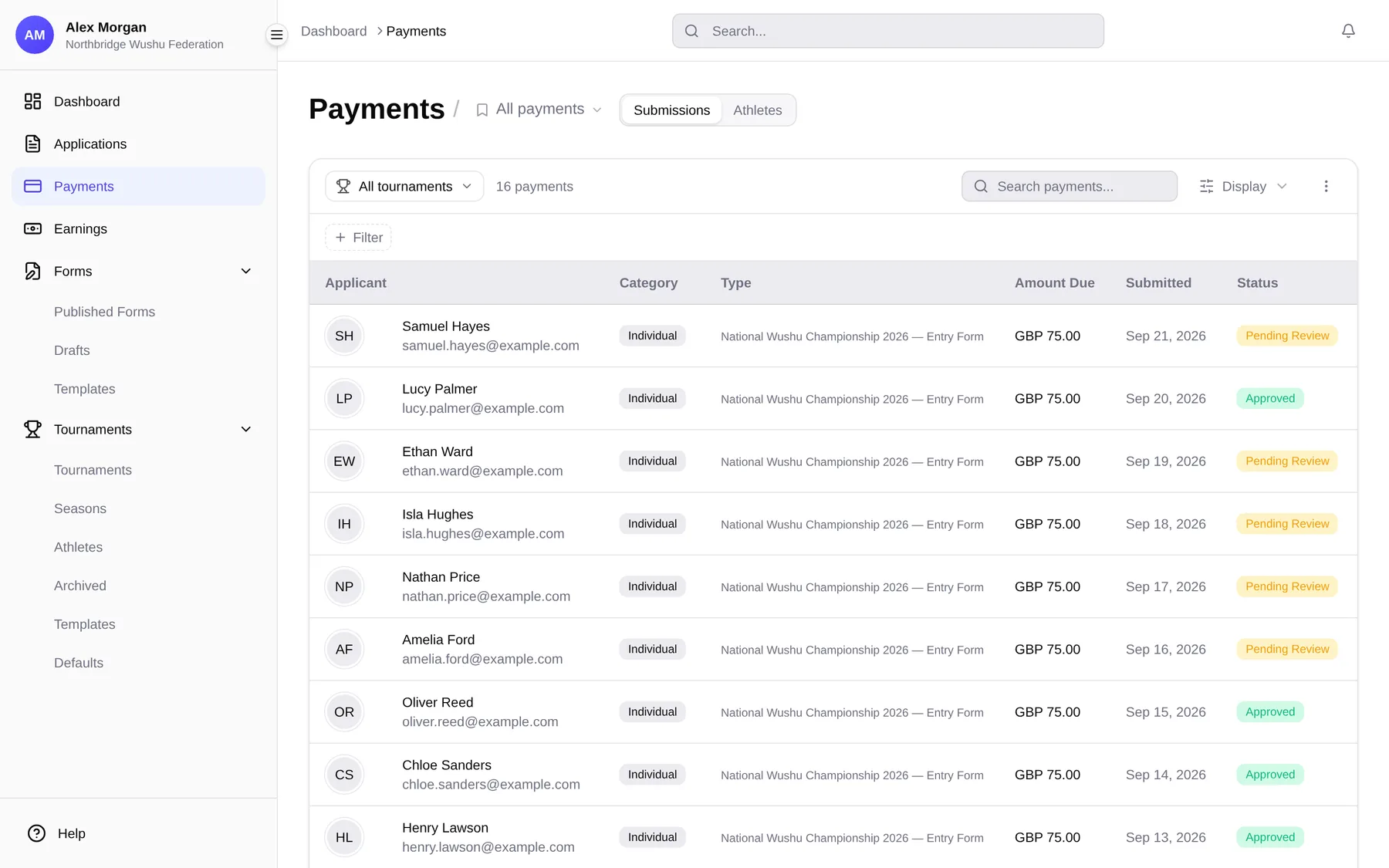
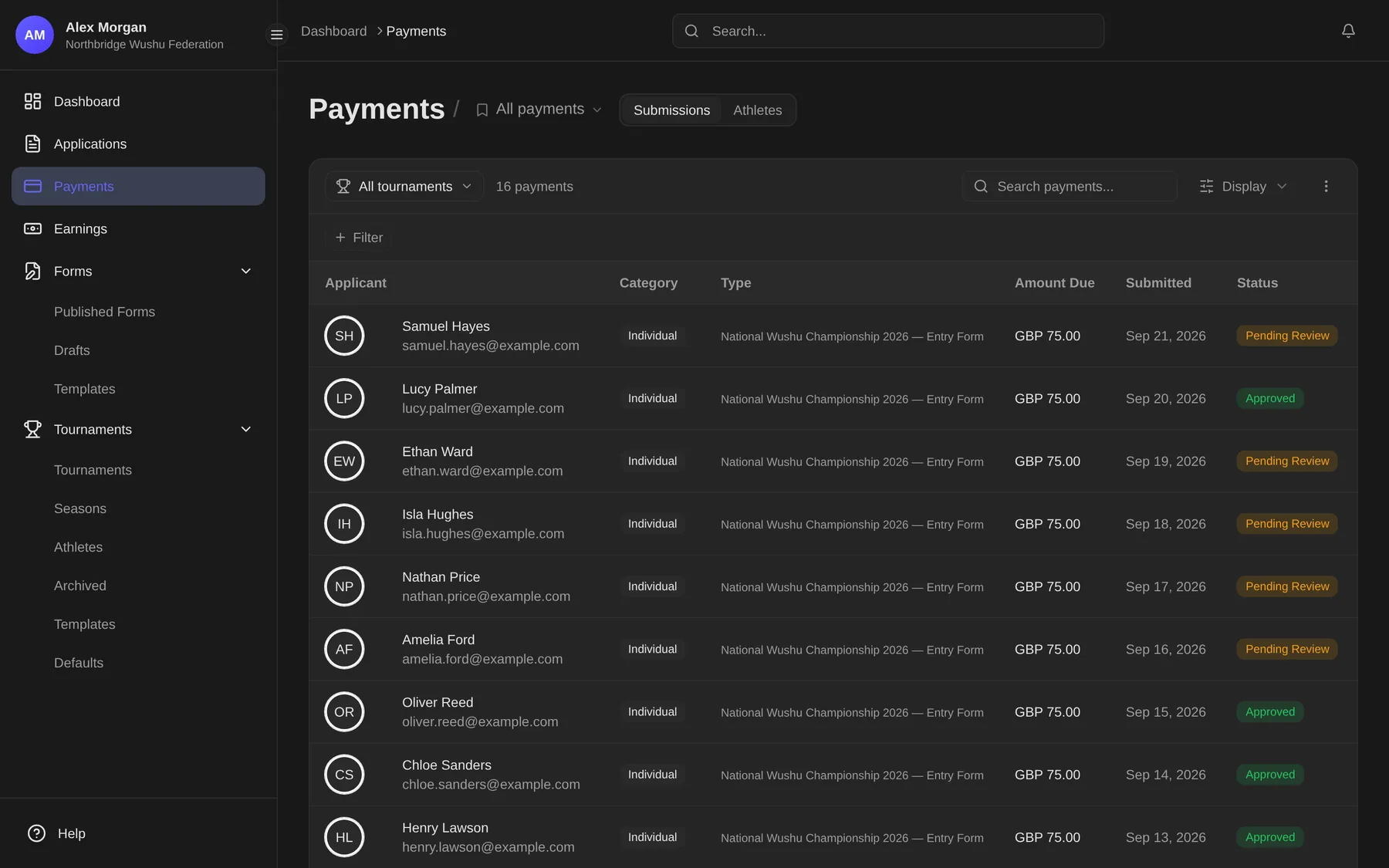
What you set on the form
Section titled “What you set on the form”Turn Collect Payment off and registration is free. Turn it on and you choose an Amount and a Currency, and on a form that allows teams whether the fee is Per athlete or a Fixed total.
Three payment methods can be offered in any combination:
| Method | How the money arrives | Who does the work |
|---|---|---|
| Card | Instant checkout. | Nobody — it settles itself. |
| Bank Transfer | The applicant is emailed an invoice; the money lands in 1–5 business days. | Nobody — it settles itself. |
| Slip Upload | The applicant transfers to your bank account and uploads a receipt. | A person on your team has to review every one. |
Slip Upload needs a Bank Name and an Account Number before you can publish, and lets you add a Swift / Routing, a reference format and your own instructions.
Reading a payment status
Section titled “Reading a payment status”Every application carries a payment badge on the Applications list, and nothing at all when the form charges no fee.
| Badge | What it means |
|---|---|
| Paid | Settled. Nothing to do. |
| Slip Review | A slip has been uploaded and is waiting for one of your team. |
| Awaiting | Money is expected and has not arrived. |
| Pending | A payment has been started and has not completed. |
| Split Sent | A team chose to pay per athlete and everyone has been emailed their own link. |
| Partial | Some athletes in a team have paid and some have not. |
| Waived | The fee has been written off for this entry. |
| Failed | An attempt was made and did not go through. |
You can filter the list by any of these, which is the quickest way to find the slips waiting on you. See Reviewing entries.
Where payments are handled
Section titled “Where payments are handled”The Payment tab on an application is read-only. It shows the amount, the status, the transaction reference, a waived date where one applies, and a preview of the uploaded slip — and then links out: “Manage this payment on the Payments page →”.
When you enter an application at the desk yourself, the Application created screen offers Collect payment now, which takes you to that entry’s payment record so you can record cash, a cheque or a bank transfer, take a card at the desk, or send a payment link.
Reviewing a payment slip
Section titled “Reviewing a payment slip”A slip is a photograph or a PDF of a bank transfer receipt, uploaded by the applicant. Somebody has to look at it and decide.
- Find the entry — filter the list on the Slip Review payment status, or open the application from the notification.
- Open the slip preview and check the amount, the date and the reference against your own bank statement.
- Accept it, and the entry is settled. If the application itself is also approved, the applicant is emailed a confirmation automatically.
- Reject it with a reason, and the applicant may upload another one.
Reviewing slips needs the permission to review payment slips. A Payment slip pending review notification exists, so the person who does this work can be told rather than having to look. See Notifications.
Waiving a fee
Section titled “Waiving a fee”On a payment that still has something owed, Waive fee writes off everything outstanding on that registration. A reason is required and kept on the record. Paid, already-waived and not-required fees cannot be waived.
If your organisation requires a second person for waivers (Access & Security → Security → A second person approves every waived fee), pressing it files a request instead and you get Waiver requested — a second person needs to approve it. The payment shows Waiver waiting for approval with who asked and why, and the fee stays owed until somebody else with Approve fee waivers presses Approve waiver or Reject. The person who asked is never offered the approve button.
Who can do what
Section titled “Who can do what”Payment permissions are deliberately split, and the split is the one customers ask about most:
- Staff and Registrar can view payments, review slips, record offline payments and resend invoices. They cannot export payments, waive a fee or issue a refund through the payment provider.
- Finance can do all of that too: export, waive fees, approve waivers, and refund through the payment provider.
- Recording a refund you handed over yourself and issuing a refund through the payment provider are two different permissions. Only Owner, Admin and Finance hold the second.
- Tournament director, Viewer / auditor and anyone else who can see payments can see them and change nothing.
See Your team and their roles.
Payment links for one athlete
Section titled “Payment links for one athlete”Where a team chooses to pay per athlete, each athlete is emailed a personal payment link. Those links expire after 30 days, and resending one starts the 30 days again.
What the applicant sees at each stage is covered in Paying your entry fee.